
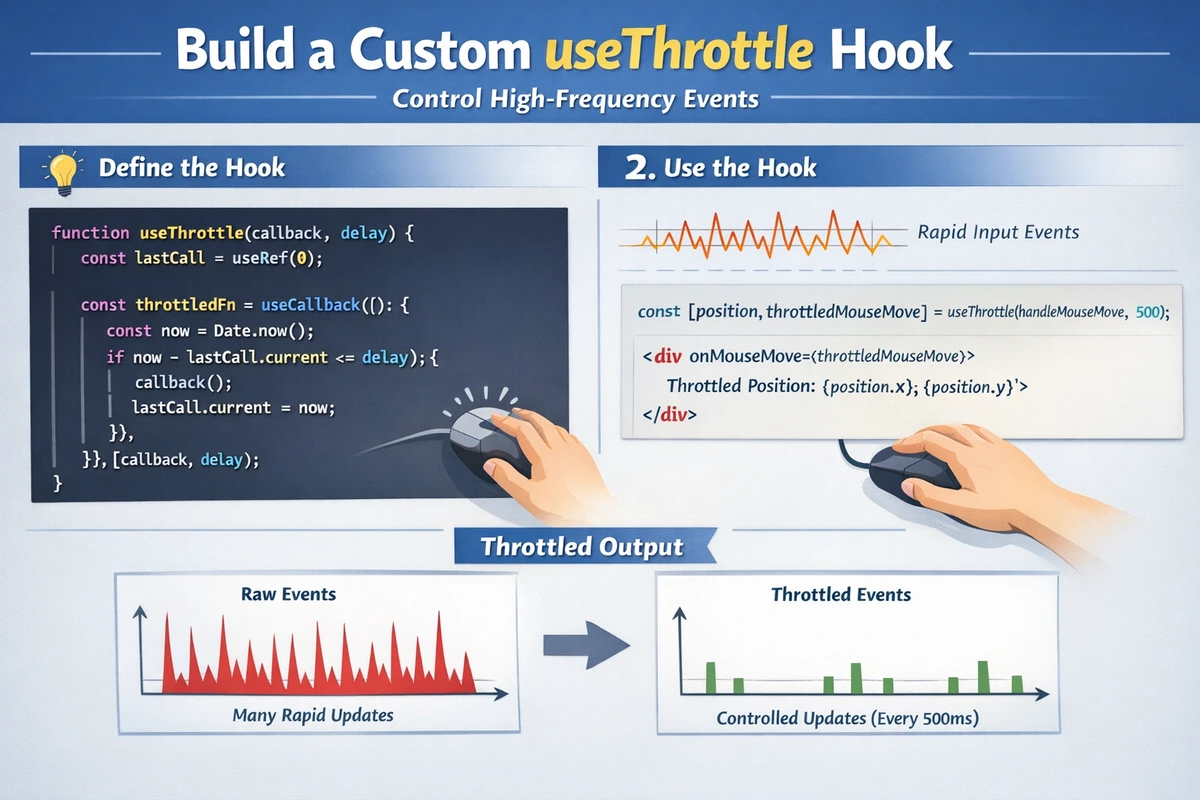
Build a Custom useThrottle Hook: Control High-Frequency Events
When users scroll through a page, they trigger hundreds of scroll events per second. Without throttling, your scroll handlers fire hundreds of times, each potentially triggering expensive calculations, DOM queries, or API calls. The browser can't keep up, the frame rate drops, and users feel the lag.
Throttling is the answer—it ensures your handler fires at most once per time interval, giving your browser breathing room while still keeping the UI responsive. Unlike debouncing (which waits for activity to stop), throttling maintains a steady heartbeat of execution, perfect for continuous events like scrolling, mouse movement, and resize operations.
This guide builds a production-ready useThrottle hook from scratch, covers advanced patterns like leading and trailing edge execution, and solves real problems that appear daily in large-scale React applications at companies like ByteDance, Alibaba, and Tencent.
Table of Contents
- When to Throttle vs Debounce
- Basic Throttle Implementation
- TypeScript-First Architecture
- Advanced Edge Control
- High-Frequency Event Patterns
- Practical Application: Infinite Scroll
- Memory and Performance Tuning
- FAQ
When to Throttle vs Debounce
The fundamental difference determines which tool you reach for:
Debounce: Wait for silence, then execute
- User types "react" → after 300ms of no typing → execute
- Perfect for: search input, form validation, auto-save
Throttle: Execute periodically while active
- User scrolls for 2 seconds → execute every 200ms → 10 total executions
- Perfect for: scroll position tracking, mouse tracking, continuous data streams
| Scenario | Tool | Why |
|---|---|---|
| User types in search box | Debounce | Only care about the final query after they stop |
| Page infinite scroll | Throttle | Need to check position while scrolling, repeatedly |
| Window resize | Either | Debounce if resizing is brief, throttle for continuous feedback |
| Real-time dashboard updates | Throttle | Updates arrive constantly; process them at fixed intervals |
| Form field validation | Debounce | Only validate after user stops editing |
| Drag operation | Throttle | Need position updates while dragging, frequently |
The key insight: Throttle ensures periodic execution; Debounce ensures delayed execution.
Basic Throttle Implementation
Let's start with a straightforward throttle that maintains a steady execution rhythm:
TypeScript Version
import { useState, useEffect, useRef, useCallback } from 'react';

export function useThrottle<T>(value: T, intervalMs: number = 500): T {
  const [throttledValue, setThrottledValue] = useState<T>(value);
  const lastUpdateTimeRef = useRef<number>(Date.now());

  useEffect(() => {
    const now = Date.now();
    const timeSinceLastUpdate = now - lastUpdateTimeRef.current;

    // If enough time has passed, update immediately
    if (timeSinceLastUpdate >= intervalMs) {
      lastUpdateTimeRef.current = now;
      setThrottledValue(value);
    } else {
      // Schedule update for when the interval expires
      const remainingTime = intervalMs - timeSinceLastUpdate;
      const handler = setTimeout(() => {
        lastUpdateTimeRef.current = Date.now();
        setThrottledValue(value);
      }, remainingTime);

      return () => clearTimeout(handler);
    }
  }, [value, intervalMs]);

  return throttledValue;
}JavaScript Version
import { useState, useEffect, useRef } from 'react';

export function useThrottle(value, intervalMs = 500) {
  const [throttledValue, setThrottledValue] = useState(value);
  const lastUpdateTimeRef = useRef(Date.now());

  useEffect(() => {
    const now = Date.now();
    const timeSinceLastUpdate = now - lastUpdateTimeRef.current;

    // If enough time has passed, update immediately
    if (timeSinceLastUpdate >= intervalMs) {
      lastUpdateTimeRef.current = now;
      setThrottledValue(value);
    } else {
      // Schedule update for when the interval expires
      const remainingTime = intervalMs - timeSinceLastUpdate;
      const handler = setTimeout(() => {
        lastUpdateTimeRef.current = Date.now();
        setThrottledValue(value);
      }, remainingTime);

      return () => clearTimeout(handler);
    }
  }, [value, intervalMs]);

  return throttledValue;
}How It Works
Timing check: Compare the current time against the last update time. If intervalMs has elapsed, update immediately and reset the timer.
Deferred updates: If we're still within the interval, schedule an update for when the interval expires. This ensures at least intervalMs time passes between updates.
Cleanup: Clear the pending timer if the effect runs again (the value changed). This prevents stale updates but schedules a new one with the fresh interval.
Using It
function ScrollMetrics() {
  const [scrollY, setScrollY] = useState(0);
  const throttledScrollY = useThrottle(scrollY, 100);

  useEffect(() => {
    const handleScroll = () => {
      setScrollY(window.scrollY);
    };

    window.addEventListener('scroll', handleScroll);
    return () => window.removeEventListener('scroll', handleScroll);
  }, []);

  // This effect runs at most every 100ms, not on every scroll event
  useEffect(() => {
    console.log(`User scrolled to ${throttledScrollY}px`);
    // Expensive operations: analytics, lazy loading, parallax effects
  }, [throttledScrollY]);

  return <div>Scroll position: {throttledScrollY}px</div>;
}
The pattern is critical: the immediate state (scrollY) updates on every event for responsive feedback, while the throttled value ensures expensive operations run at a controlled frequency.
TypeScript-First Architecture
For teams prioritizing type safety and control, here's an enhanced implementation with better ergonomics:
import { useState, useEffect, useRef, useCallback } from 'react';

interface ThrottledState<T> {
  value: T;
  isThrottled: boolean;
}

interface ThrottleOptions {
  leading?: boolean;
  trailing?: boolean;
}

export function useThrottle<T>(
  value: T,
  intervalMs: number = 500,
  options: ThrottleOptions = {}
): ThrottledState<T> {
  const { leading = true, trailing = true } = options;
  const [throttledValue, setThrottledValue] = useState<T>(value);
  const [isThrottled, setIsThrottled] = useState(false);
  const lastUpdateRef = useRef<number>(Date.now());
  const timeoutRef = useRef<ReturnType<typeof setTimeout>>();
  const pendingValueRef = useRef<T | undefined>();

  useEffect(() => {
    const now = Date.now();
    const elapsed = now - lastUpdateRef.current;
    const shouldUpdate = elapsed >= intervalMs;

    // Leading edge: update immediately if interval has passed
    if (shouldUpdate && leading) {
      lastUpdateRef.current = now;
      setThrottledValue(value);
      setIsThrottled(false);
      pendingValueRef.current = undefined;

      // Clear any pending trailing update
      if (timeoutRef.current) {
        clearTimeout(timeoutRef.current);
        timeoutRef.current = undefined;
      }
    } else {
      // Not enough time elapsed; mark as throttled
      setIsThrottled(true);
      pendingValueRef.current = value;

      // Clear existing timeout
      if (timeoutRef.current) {
        clearTimeout(timeoutRef.current);
      }

      // Schedule trailing edge update
      if (trailing) {
        const delay = Math.max(0, intervalMs - elapsed);
        timeoutRef.current = setTimeout(() => {
          lastUpdateRef.current = Date.now();
          setThrottledValue(pendingValueRef.current as T);
          setIsThrottled(false);
          timeoutRef.current = undefined;
          pendingValueRef.current = undefined;
        }, delay);
      }
    }

    return () => {
      if (timeoutRef.current) {
        clearTimeout(timeoutRef.current);
      }
    };
  }, [value, intervalMs, leading, trailing]);

  // Cleanup on unmount
  useEffect(() => {
    return () => {
      if (timeoutRef.current) {
        clearTimeout(timeoutRef.current);
      }
    };
  }, []);

  return { value: throttledValue, isThrottled };
}
The isThrottled flag: Tells you when updates are being held back. Useful for showing loading states or disabling interactions while throttling is active.
Leading edge: Update immediately when called (useful for responsive feedback). Set leading: false to wait for the first interval to pass.
Trailing edge: Update one more time after the interval when new values arrive. Set trailing: false to skip the final update (useful when you only need periodic snapshots).
TypeScript Usage
function MouseTracker() {
  const [mousePos, setMousePos] = useState({ x: 0, y: 0 });
  const { value: throttledPos, isThrottled } = useThrottle(
    mousePos,
    50, // Update tracking every 50ms
    { leading: true, trailing: true }
  );

  useEffect(() => {
    const handleMouseMove = (e: MouseEvent) => {
      setMousePos({ x: e.clientX, y: e.clientY });
    };

    window.addEventListener('mousemove', handleMouseMove);
    return () => window.removeEventListener('mousemove', handleMouseMove);
  }, []);

  // Runs at most 20 times per second (1000ms / 50ms)
  useEffect(() => {
    // Expensive operation: update canvas, update data visualization, etc.
    updateParallaxEffect(throttledPos);
  }, [throttledPos]);

  return (
    <div>
      <p>Mouse: {throttledPos.x}, {throttledPos.y}</p>
      {isThrottled && <span>⏳ Throttling...</span>}
    </div>
  );
}Advanced Edge Control
Leading-Only (Immediate Feedback)
Useful when you need responsive UI feedback but periodic API calls:
export function useThrottledCallback<T extends (...args: any[]) => any>(
  callback: T,
  intervalMs: number = 500,
  options: { leading?: boolean; trailing?: boolean } = {}
) {
  const { leading = true, trailing = true } = options;
  const lastCallRef = useRef<number>(0);
  const timeoutRef = useRef<ReturnType<typeof setTimeout>>();

  return useCallback(
    (...args: Parameters<T>) => {
      const now = Date.now();

      // Execute immediately if leading is enabled and interval has passed
      if (leading && now - lastCallRef.current >= intervalMs) {
        lastCallRef.current = now;
        callback(...args);
      } else if (!timeoutRef.current) {
        // Schedule trailing execution if enabled
        if (trailing) {
          timeoutRef.current = setTimeout(() => {
            lastCallRef.current = Date.now();
            callback(...args);
            timeoutRef.current = undefined;
          }, intervalMs - (now - lastCallRef.current));
        }
      }
    },
    [callback, intervalMs, leading, trailing]
  );
}
Usage for drag operations:
function DraggableElement() {
  const [position, setPosition] = useState({ x: 0, y: 0 });
  const [isDragging, setIsDragging] = useState(false);

  // Throttle with leading=true (immediate visual feedback)
  // and trailing=true (final position update to server)
  const handleDrag = useThrottledCallback(
    (e: MouseEvent) => {
      const newPos = {
        x: e.clientX - 25, // Adjust for element width
        y: e.clientY - 25,
      };
      setPosition(newPos);
      // Update server with new position, at most every 100ms
      updateElementPosition(newPos);
    },
    100,
    { leading: true, trailing: true }
  );

  const handleMouseDown = () => setIsDragging(true);
  const handleMouseUp = () => setIsDragging(false);

  useEffect(() => {
    if (!isDragging) return;

    window.addEventListener('mousemove', handleDrag);
    return () => window.removeEventListener('mousemove', handleDrag);
  }, [isDragging, handleDrag]);

  return (
    <div
      onMouseDown={handleMouseDown}
      onMouseUp={handleMouseUp}
      style={{
        position: 'absolute',
        left: position.x,
        top: position.y,
        cursor: isDragging ? 'grabbing' : 'grab',
      }}
    >
      Drag me
    </div>
  );
}High-Frequency Event Patterns
Infinite Scroll with Throttled Position Check
interface LoadMoreState {
  items: any[];
  isLoading: boolean;
  hasMore: boolean;
  error: string | null;
}

export function VirtualizedList() {
  const [scrollY, setScrollY] = useState(0);
  const [listState, setListState] = useState<LoadMoreState>({
    items: [],
    isLoading: false,
    hasMore: true,
    error: null,
  });

  const containerRef = useRef<HTMLDivElement>(null);
  const { value: throttledScrollY } = useThrottle(scrollY, 200);

  // Check if user has scrolled near bottom
  useEffect(() => {
    if (!containerRef.current || listState.isLoading || !listState.hasMore) {
      return;
    }

    const { scrollHeight, clientHeight } = containerRef.current;
    const scrollThreshold = scrollHeight - clientHeight - 500; // 500px from bottom

    if (throttledScrollY >= scrollThreshold) {
      // Load more items
      setListState(prev => ({ ...prev, isLoading: true }));

      fetchMoreItems(listState.items.length)
        .then(newItems => {
          setListState(prev => ({
            ...prev,
            items: [...prev.items, ...newItems],
            hasMore: newItems.length > 0,
            isLoading: false,
            error: null,
          }));
        })
        .catch(err => {
          setListState(prev => ({
            ...prev,
            isLoading: false,
            error: 'Failed to load more items',
          }));
        });
    }
  }, [throttledScrollY, listState.hasMore, listState.isLoading, listState.items.length]);

  return (
    <div
      ref={containerRef}
      onScroll={(e) => setScrollY(e.currentTarget.scrollTop)}
      style={{ height: '100vh', overflow: 'auto' }}
    >
      <ul>
        {listState.items.map((item, idx) => (
          <li key={idx}>{item.title}</li>
        ))}
      </ul>

      {listState.isLoading && <div>Loading more...</div>}
      {listState.error && <div className="error">{listState.error}</div>}
      {!listState.hasMore && <div>No more items</div>}
    </div>
  );
}Real-Time Dashboard Updates
interface MetricsData {
  cpu: number;
  memory: number;
  network: number;
  timestamp: number;
}

export function LiveMetricsDashboard() {
  const [rawMetrics, setRawMetrics] = useState<MetricsData[]>([]);
  const { value: throttledMetrics } = useThrottle(
    rawMetrics[rawMetrics.length - 1] || null,
    1000 // Update visualization every 1 second
  );

  useEffect(() => {
    // Simulating real-time data stream (e.g., WebSocket)
    const interval = setInterval(() => {
      setRawMetrics(prev => [
        ...prev,
        {
          cpu: Math.random() * 100,
          memory: Math.random() * 100,
          network: Math.random() * 100,
          timestamp: Date.now(),
        },
      ]);
    }, 100); // Data arrives every 100ms

    return () => clearInterval(interval);
  }, []);

  return (
    <div>
      <MetricsChart data={throttledMetrics} />
      <p>Data points received: {rawMetrics.length}</p>
      <p>Last update: {throttledMetrics?.timestamp}</p>
    </div>
  );
}
In this pattern, data arrives frequently (every 100ms), but the UI updates only throttle to 1 second intervals, preventing excessive renders and keeping the dashboard responsive.
Memory and Performance Tuning
Choosing the Right Interval
For smooth animations: 16ms (60 FPS) - if you can throttle to 60FPS
const throttledMousePos = useThrottle(mousePos, 1000 / 60);For scroll tracking: 100-200ms
const throttledScroll = useThrottle(scrollY, 150);For resize events: 200-300ms
const throttledSize = useThrottle(windowSize, 250);For WebSocket data: 500-2000ms depending on how fresh data needs to be
const throttledMetrics = useThrottle(latestMetrics, 1000);Memory Leak Prevention
Always clean up timers:
useEffect(() => {
  return () => {
    if (timeoutRef.current) {
      clearTimeout(timeoutRef.current);
    }
  };
}, []);
Forgetting this causes accumulated timers in SPAs with rapid component mounting/unmounting.
RequestAnimationFrame Alternative
For frame-perfect throttling, use requestAnimationFrame instead of setInterval:
export function useThrottleRAF<T>(value: T): T {
  const [throttledValue, setThrottledValue] = useState<T>(value);
  const rafRef = useRef<number>();

  useEffect(() => {
    if (rafRef.current) {
      cancelAnimationFrame(rafRef.current);
    }

    rafRef.current = requestAnimationFrame(() => {
      setThrottledValue(value);
    });

    return () => {
      if (rafRef.current) {
        cancelAnimationFrame(rafRef.current);
      }
    };
  }, [value]);

  return throttledValue;
}
This syncs with the browser's refresh rate, perfect for smooth visual updates.
Practical Application: Infinite Scroll
Let's build a complete infinite scroll implementation that handles all edge cases. This pattern is used by content platforms at ByteDance for their feeds:
TypeScript Version
interface ScrollState {
  items: Article[];
  page: number;
  isLoading: boolean;
  error: string | null;
  hasMore: boolean;
}

interface Article {
  id: string;
  title: string;
  excerpt: string;
  timestamp: number;
}

export function InfiniteScrollFeed() {
  const containerRef = useRef<HTMLDivElement>(null);
  const [scrollY, setScrollY] = useState(0);
  const [feedState, setFeedState] = useState<ScrollState>({
    items: [],
    page: 0,
    isLoading: false,
    error: null,
    hasMore: true,
  });

  const { value: throttledScrollY } = useThrottle(scrollY, 150);

  // Load initial articles on mount
  useEffect(() => {
    loadArticles(0);
  }, []);

  // Check if we should load more when scrolling
  useEffect(() => {
    if (!containerRef.current || feedState.isLoading || !feedState.hasMore) {
      return;
    }

    const { scrollHeight, clientHeight } = containerRef.current;
    const distanceFromBottom = scrollHeight - (throttledScrollY + clientHeight);

    // Trigger load when 1000px from bottom
    if (distanceFromBottom < 1000) {
      loadMoreArticles();
    }
  }, [throttledScrollY, feedState.isLoading, feedState.hasMore]);

  const loadArticles = (page: number) => {
    setFeedState(prev => ({ ...prev, isLoading: true, error: null }));

    fetchArticles(page)
      .then(articles => {
        setFeedState(prev => ({
          ...prev,
          items: page === 0 ? articles : [...prev.items, ...articles],
          page,
          isLoading: false,
          hasMore: articles.length > 0,
        }));
      })
      .catch(err => {
        setFeedState(prev => ({
          ...prev,
          isLoading: false,
          error: 'Failed to load articles',
        }));
      });
  };

  const loadMoreArticles = () => {
    loadArticles(feedState.page + 1);
  };

  const handleScroll = (e: React.UIEvent<HTMLDivElement>) => {
    setScrollY(e.currentTarget.scrollTop);
  };

  return (
    <div
      ref={containerRef}
      onScroll={handleScroll}
      style={{
        height: '100vh',
        overflow: 'auto',
        position: 'relative',
      }}
    >
      <div className="feed">
        {feedState.items.map(article => (
          <article key={article.id} className="feed-item">
            <h2>{article.title}</h2>
            <p>{article.excerpt}</p>
            <time>{new Date(article.timestamp).toLocaleDateString()}</time>
          </article>
        ))}
      </div>

      {feedState.isLoading && (
        <div className="loading" role="status" aria-live="polite">
          <span>Loading more articles...</span>
        </div>
      )}

      {feedState.error && (
        <div className="error" role="alert">
          {feedState.error}
          <button onClick={loadMoreArticles}>Retry</button>
        </div>
      )}

      {!feedState.hasMore && (
        <div className="end-of-list" role="status">
          You've reached the end
        </div>
      )}
    </div>
  );
}

async function fetchArticles(page: number): Promise<Article[]> {
  // Simulated API call
  const response = await fetch(`/api/articles?page=${page}&limit=20`);
  if (!response.ok) throw new Error('Failed to fetch');
  return response.json();
}JavaScript Version
export function InfiniteScrollFeed() {
  const containerRef = useRef(null);
  const [scrollY, setScrollY] = useState(0);
  const [feedState, setFeedState] = useState({
    items: [],
    page: 0,
    isLoading: false,
    error: null,
    hasMore: true,
  });

  const { value: throttledScrollY } = useThrottle(scrollY, 150);

  useEffect(() => {
    loadArticles(0);
  }, []);

  useEffect(() => {
    if (!containerRef.current || feedState.isLoading || !feedState.hasMore) {
      return;
    }

    const { scrollHeight, clientHeight } = containerRef.current;
    const distanceFromBottom = scrollHeight - (throttledScrollY + clientHeight);

    if (distanceFromBottom < 1000) {
      loadMoreArticles();
    }
  }, [throttledScrollY, feedState.isLoading, feedState.hasMore]);

  const loadArticles = (page) => {
    setFeedState(prev => ({ ...prev, isLoading: true, error: null }));

    fetchArticles(page)
      .then(articles => {
        setFeedState(prev => ({
          ...prev,
          items: page === 0 ? articles : [...prev.items, ...articles],
          page,
          isLoading: false,
          hasMore: articles.length > 0,
        }));
      })
      .catch(err => {
        setFeedState(prev => ({
          ...prev,
          isLoading: false,
          error: 'Failed to load articles',
        }));
      });
  };

  const loadMoreArticles = () => {
    loadArticles(feedState.page + 1);
  };

  const handleScroll = (e) => {
    setScrollY(e.currentTarget.scrollTop);
  };

  return (
    <div
      ref={containerRef}
      onScroll={handleScroll}
      style={{
        height: '100vh',
        overflow: 'auto',
      }}
    >
      <div className="feed">
        {feedState.items.map(article => (
          <article key={article.id}>
            <h2>{article.title}</h2>
            <p>{article.excerpt}</p>
            <time>{new Date(article.timestamp).toLocaleDateString()}</time>
          </article>
        ))}
      </div>

      {feedState.isLoading && <div className="loading">Loading...</div>}
      {feedState.error && (
        <div className="error">
          {feedState.error}
          <button onClick={loadMoreArticles}>Retry</button>
        </div>
      )}
      {!feedState.hasMore && <div>You've reached the end</div>}
    </div>
  );
}
Why throttle here instead of debounce? Scroll events fire hundreds of times per second. Throttling ensures we check the scroll position at regular intervals (every 150ms) while the user is actively scrolling—catching the moment they reach the bottom. Debouncing would wait for the user to stop scrolling before loading, which is too late.
FAQ
Q: Should I throttle or use Intersection Observer for infinite scroll?
A: Intersection Observer is generally superior for infinite scroll because it's event-driven (fires only when elements enter/exit viewport) rather than polling-based. Throttling scroll events is the "classic" approach. Here's why Intersection Observer wins:
// Modern approach: Intersection Observer (preferred)
export function SmartInfiniteScroll() {
  const sentinelRef = useRef(null);

  useEffect(() => {
    const observer = new IntersectionObserver(entries => {
      if (entries[0].isIntersecting) {
        loadMoreItems(); // Fires exactly when sentinel becomes visible
      }
    });

    if (sentinelRef.current) {
      observer.observe(sentinelRef.current);
    }

    return () => observer.disconnect();
  }, []);

  return (
    <>
      {/* List items */}
      <div ref={sentinelRef} /> {/* Sentinel element */}
    </>
  );
}
Use Intersection Observer for viewport-based triggers. Use throttled scroll for scroll-position-dependent logic (parallax, sticky headers, progress bars).
Q: What's the performance difference between throttle and debounce?
A: Debounce performs fewer executions but with larger delays. Throttle maintains a steady heartbeat. For scroll:
- Debounce (500ms): 1 execution if user stops scrolling
- Throttle (100ms): ~10 executions while user scrolls for 1 second
Throttle is more predictable for performance—you know updates happen every 100ms. Debounce can surprise users with delayed feedback.
Q: Can I adjust the throttle interval dynamically?
A: Yes, it's in the dependency array:
const [interval, setInterval] = useState(100);
const throttledValue = useThrottle(value, interval);

// Change interval based on user preference
<button onClick={() => setInterval(50)}>Increase smoothness</button>
Changing interval resets the throttle timer, which can cause brief hiccups. Usually not a problem—intervals are typically set once.
Q: How is throttle different from just using setInterval?
A: setInterval fires on a fixed schedule regardless of input. Throttle fires whenever input changes or the interval expires. This matters:
// setInterval: fires every 100ms even if nothing happens
setInterval(() => updateUI(), 100);

// Throttle: fires on value changes OR every 100ms, whichever comes first
const throttledValue = useThrottle(value, 100);
Throttle is more efficient—it doesn't fire if nothing changed.
Q: Should I debounce or throttle keyboard input?
A: It depends:
- Search input → Debounce: Wait 300ms after user stops typing, then search
- Code editor auto-save → Throttle: Save every 30 seconds while editing (user gets feedback)
- Form validation → Debounce: Show errors only after user pauses (not during typing)
For keyboard, debounce is usually better unless you need periodic updates (like auto-save).
Q: How do I prevent multiple throttled function calls from stacking?
A: The hook already handles this—only one scheduled call exists at a time. If you're seeing stacking, check if you're creating new throttle hooks on every render:
// ❌ BUG: New throttle hook on every render
export function Component() {
  const handleScroll = (y) => setScrollY(y);
  const throttled = useThrottle(handleScroll, 100); // Creates new hook instance!

  useEffect(() => {
    window.addEventListener('scroll', throttled);
    return () => window.removeEventListener('scroll', throttled);
  }, [throttled]); // Re-registers on every render
}

// ✅ CORRECT: Memoize the callback first
export function Component() {
  const handleScroll = useCallback((y) => setScrollY(y), []);
  const throttled = useThrottle(handleScroll, 100);

  useEffect(() => {
    window.addEventListener('scroll', throttled);
    return () => window.removeEventListener('scroll', throttled);
  }, [throttled]); // Only registers when throttled changes
}
Related Articles:
- Build a Custom useDebounce Hook
- Understanding useEffect and Dependencies
- Event Optimization and Virtual DOM
- Building Reusable Custom Hooks
Encountered a throttling edge case we haven't covered? Share your scroll patterns in the comments—especially infinite scroll with pagination, real-time dashboards, and drag operations. Let's discuss the performance trade-offs between throttle intervals, leading/trailing edges, and modern APIs like Intersection Observer for different scenarios!